
Overview
The Customer Display allows you to use a tablet at the front desk to collect guest information, present registration cards, obtain signatures, and share QR codes with guests.
Instead of relying on printed registration cards or asking guests to provide personal information verbally, you can let them review and complete their details directly on the tablet. This simplifies the registration process, improves privacy, and reduces paper usage.
The Customer Display supports several functions:
Entering registration details: Guests can enter missing information, such as their email address, telephone number, or other required registration details, directly on the display.
Reviewing and signing registration cards: Guests can review their information, accept the hotel's policies, and sign electronically.
Correcting registration details: Reception staff can review the information entered by the guest and reactivate the Customer Display if corrections are needed.
Online Check-in QR codes: Display a QR code that guests can scan to complete their registration through Online Check-in on their own device.
Folio QR codes: Allow guests to scan a QR code and review the contents of a specific folio.
The Customer Display can be used with a tablet mounted on a stand facing the guest or with a portable tablet handed to the guest when needed.
You can configure multiple tablets as Customer Displays and select which one to use for each interaction.
Adding Tablets
To configure a tablet as a Customer Display:
On the tablet, open Clock and log in. You will need your subscription serial number when accessing Clock from a device for the first time.
Navigate to Settings -> All Settings -> Guest Interaction -> Customer Display.
Click the "+" button to register the tablet.
Enter a Name for the tablet so you can easily identify it, particularly if you use multiple Customer Displays.
Optionally, select a background image to be displayed when the tablet is not in use. You can also add or change the background image later from the tablet's edit screen.
Once registered, the Customer Display application opens on the tablet, showing either a blank grey screen or your selected background image.
Important: Create a shortcut to the Customer Display page or save its URL in your browser's favourites. This allows you to reopen the application if the browser is closed. If you have not saved the URL and can no longer access the application, you will need to delete the tablet from the Customer Display settings and register it again.
Security and Device Management
Automatic logout: Once the Customer Display application starts, you are automatically logged out of Clock. The Customer Display operates without an active user session, preventing guests from accessing your property's management functions.
Lost or stolen devices: If a registered tablet is lost or stolen, navigate to the Customer Display settings and delete the device from the list. This revokes its access to the Customer Display application.
Translations: A direct link to the Customer Display translations is available below the list of registered tablets, allowing you to manage the text displayed to guests.
Using the Customer Display
1. Collecting Registration Details and Guest Signatures
The Customer Display allows guests to complete their registration cards directly on the tablet, including entering missing information, reviewing existing details, accepting hotel policies, and providing an electronic signature.
This is particularly useful when you need to collect personal information, such as an email address or telephone number, without asking guests to state it aloud at the reception desk.
Starting the Registration Process
On your front desk device (computer, laptop, or tablet), locate and open the guest's booking.
Navigate to the registration cards section. If necessary, create a registration card for the guest.
Click the Signature button in the corresponding registration card row.

Select the tablet you wish to use from the Customer Display field. You will need to make this selection when using the function for the first time
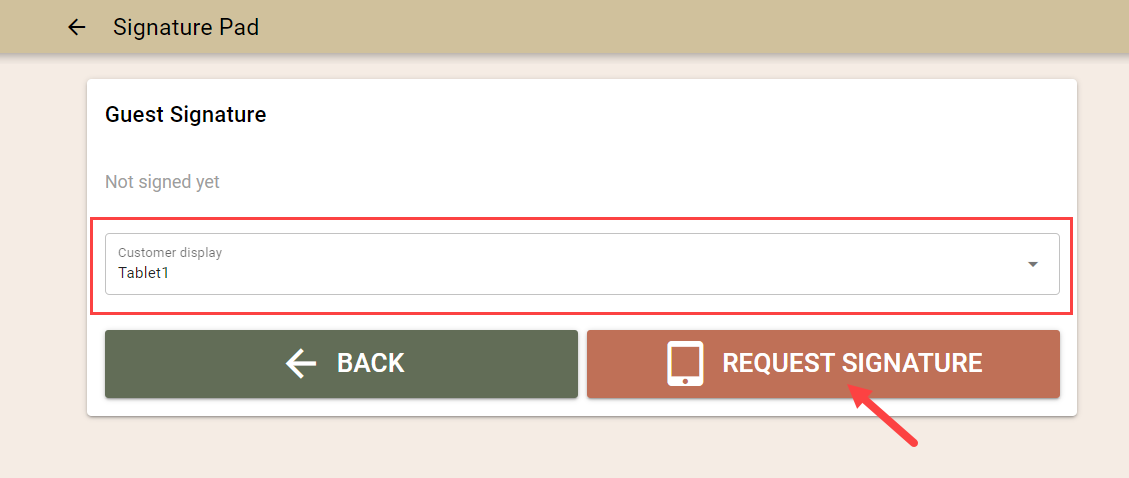
- Choose how you want the guest to interact with their registration card:
- Edit registration card: The guest can enter or complete their registration details, review the information, and sign.
- Review and sign: The guest can review the existing registration details, accept the hotel's policies, and sign without editing the information.
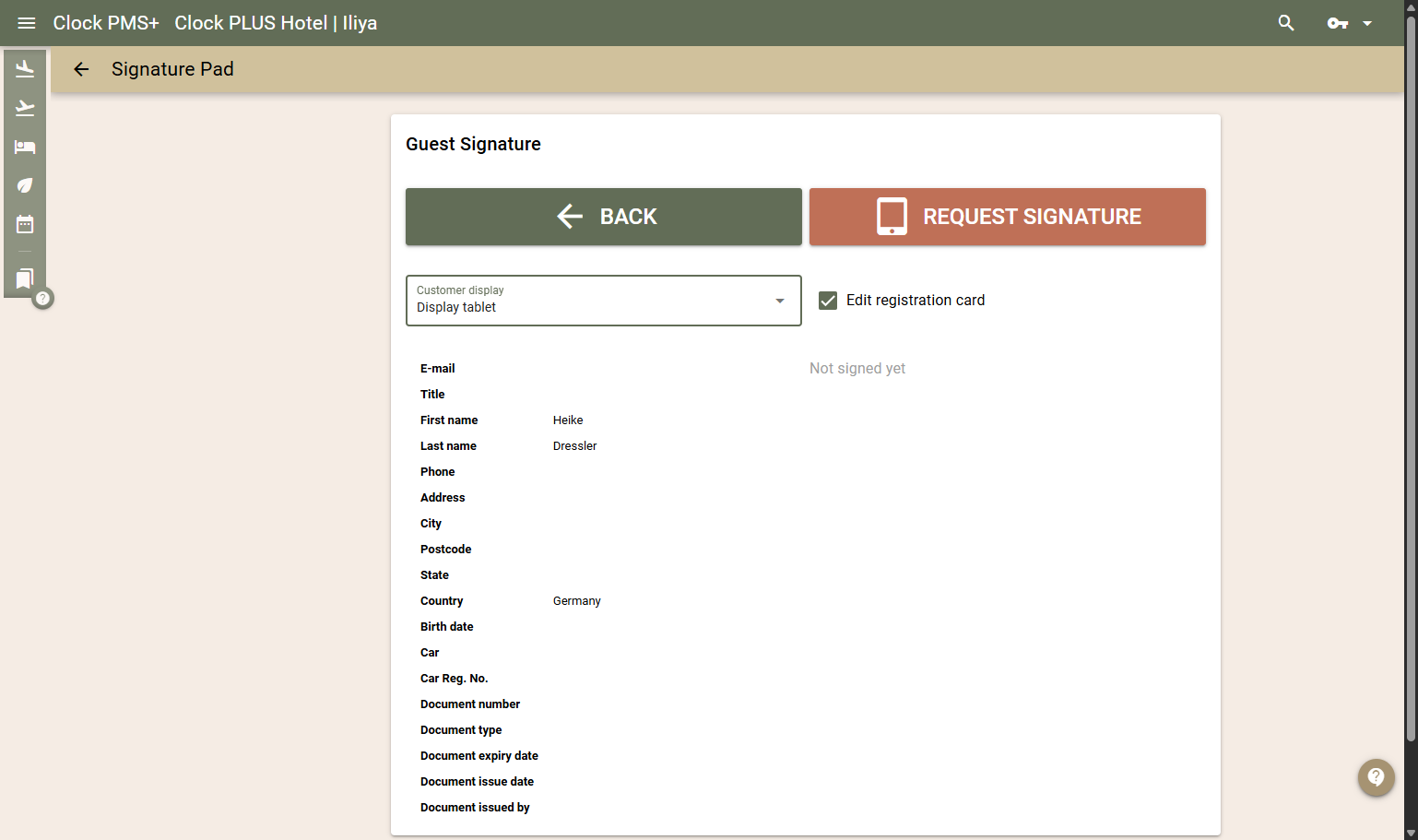
- Activate the Customer Display to present the registration card to the guest.
Guest Interaction on the Display
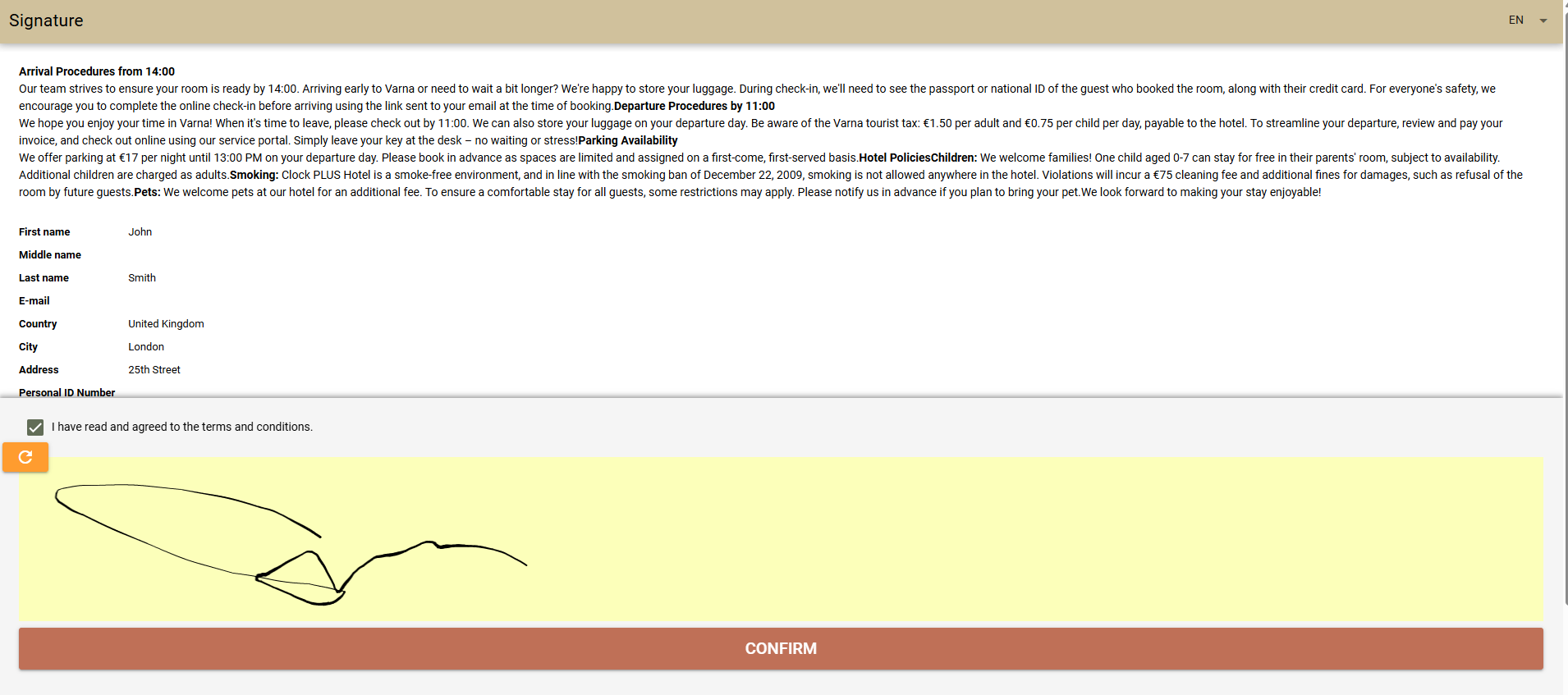
Depending on the selected mode, the guest can:
Enter missing registration information, such as their email address, telephone number, or other required details.
Review the information already recorded in their registration card.
Read the hotel's policy.
Select the "I agree with the policies" checkbox.
Sign the registration card electronically.
Confirm their submission.
When the guest is allowed to edit their details, the Customer Display presents the registration information before and after completion, allowing the guest to review what has been entered.
Reviewing and Correcting Registration Details
Once the guest has entered their information and signed the registration card, the receptionist can review the submitted details directly from the front desk screen.
This allows you to verify that all required information has been provided and that the entered details are correct.
If you identify missing or incorrect information:
Review the registration card details submitted by the guest.
Reactivate the Customer Display for the registration card.
Allow the guest to correct or complete the necessary fields.
Review the updated information once the guest has finished.
This process can be repeated as needed, without having to collect the information verbally or use a paper registration card.
Once the registration card has been completed and confirmed, the guest's signature is displayed on the receptionist's screen.
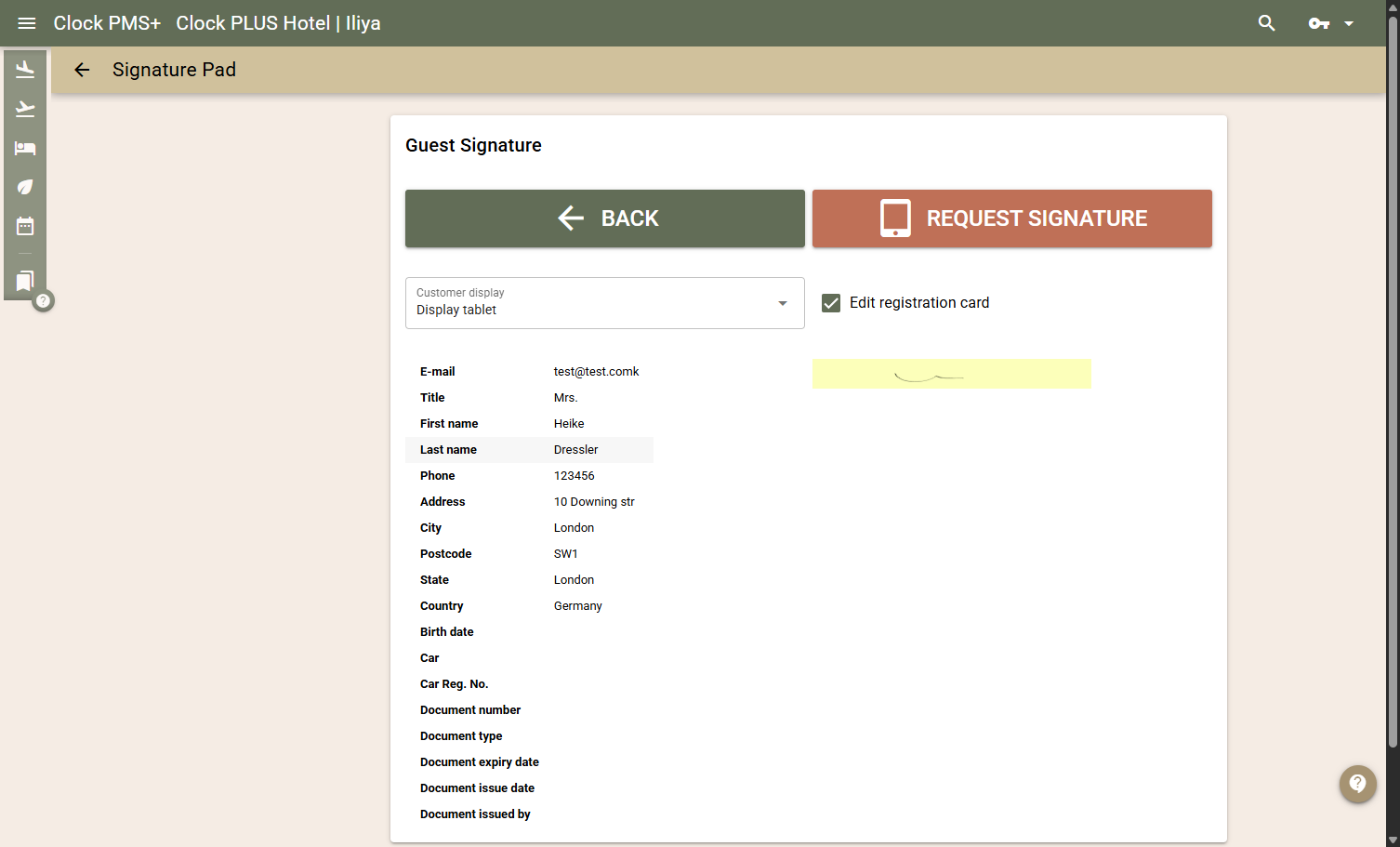
You can then exit the screen and proceed with the next registration card, if applicable.
Tip: Use the Edit registration card option when information is missing or needs to be verified by the guest. If the registration card is already complete and only the guest's confirmation and signature are required, click Request signature without ticking the 'Edit registration card' checkbox.
2. Presenting an Online Check-in QR Code
You can use the Customer Display to present a QR code that directs guests to Online Check-in on their own mobile device.
This is useful when guests prefer to complete their registration on their phone instead of using the Customer Display.
To display the QR code:
On your front desk device, locate and open the guest's booking.
In the Guest section, click the Online Check-In QR button.

Select the tablet on which you want to display the QR code from the Customer Display field.
Click Show QR code.
The QR code appears on the selected tablet.
The guest scans the code using their mobile device and follows the link to Online Check-in.
The QR code is automatically removed from the Customer Display after 40 seconds. You can also hide it manually by clicking the Back button.
Tip: The QR code is also visible on your front desk device. If the guest cannot use their own phone, you can scan the code with another available device and hand it to the guest to complete their registration.
Read more about Online Check-in.
3. Presenting a QR Code for Folio Review
The Customer Display can also present a QR code that allows guests to review the contents of a specific folio on their own device.
To display a folio QR code:
Open the folio you want to share with the guest.
Click the QR code icon.
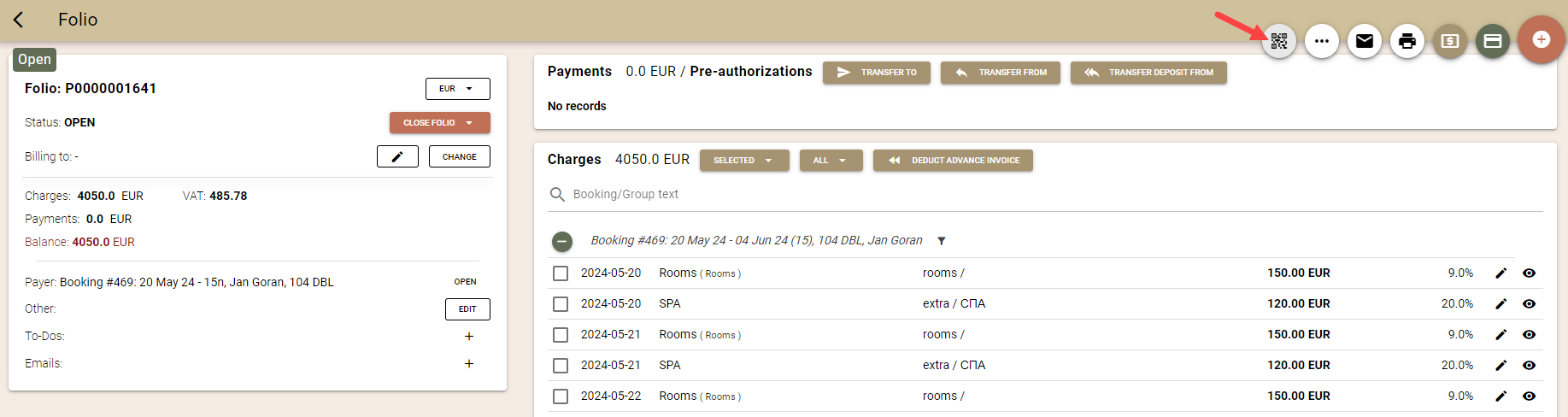
Select the tablet on which you want to display the QR code.
Click Send to confirm.
The QR code will appear on the selected Customer Display.
The guest can scan the code with their mobile device to open and review the folio contents.
Additional Considerations
Multiple Customer Displays: You can register several tablets and choose which one to use when presenting registration cards or QR codes.
Guest privacy: Allowing guests to enter their contact and registration information directly on the display reduces the need to communicate personal details aloud at reception.
Flexible registration: Reception staff can decide whether guests should enter, review, and sign their details or only review and sign an already completed registration card.
Information verification: Reception staff can review submitted information and reactivate the Customer Display whenever corrections are needed.
Paperless registration: Registration cards and signatures can be collected digitally, reducing the need for printed documents.
Device security: Customer Displays operate independently of an active Clock user session, and access can be revoked by deleting a registered tablet from the settings.