
Servicing guest enquiries is an important aspect of electronic communication with guests. Use the Booking Enquiry feature to send personalised offers and special prices to your guests and increase your sales. This versatile tool lets you generate and send an enquiry reply and then create a booking based on the guest enquiry. And all it takes is just a few clicks.
Create a booking enquiry reply
- Open the Rate and Availability screen.
- Check the results for the needed period, room types and rates on the Rate & Availability screen as usual;
- Click the small button (1) next to the price for each matching product;
- Select the number of rooms or fill in the number of rooms (2) and click '+';
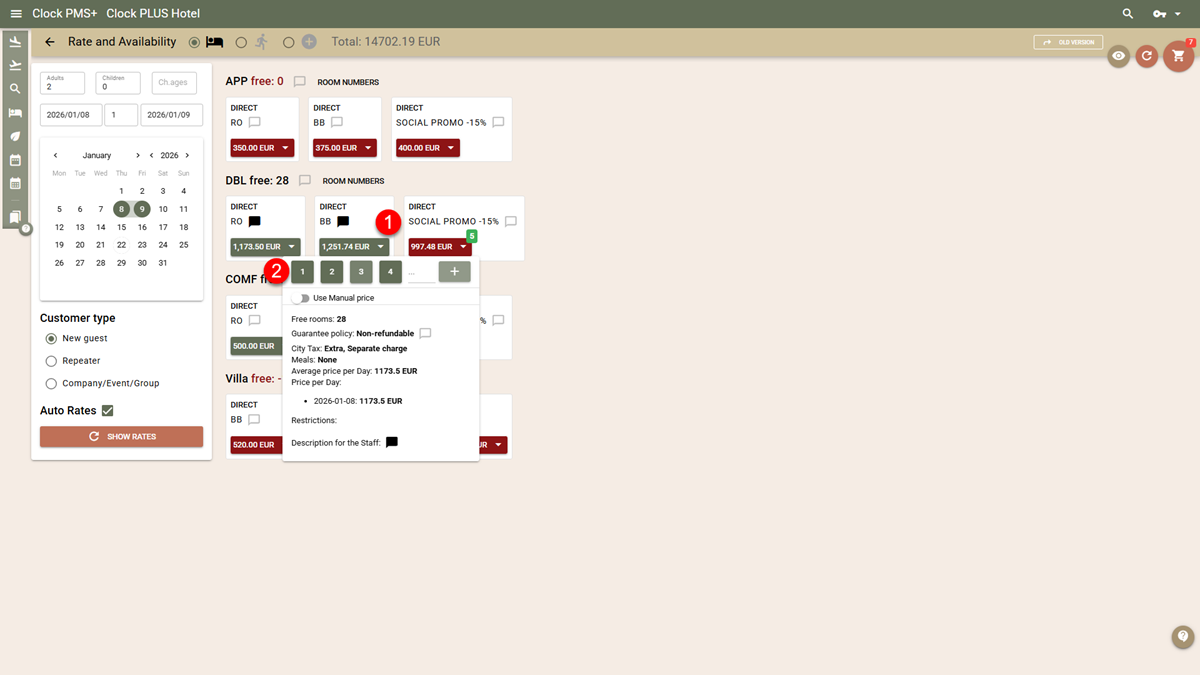
- The number of the added rooms will appear in the Cart.
- From the Cart, select or create a contact person (3) and click 'Save as Enquiry' (4)
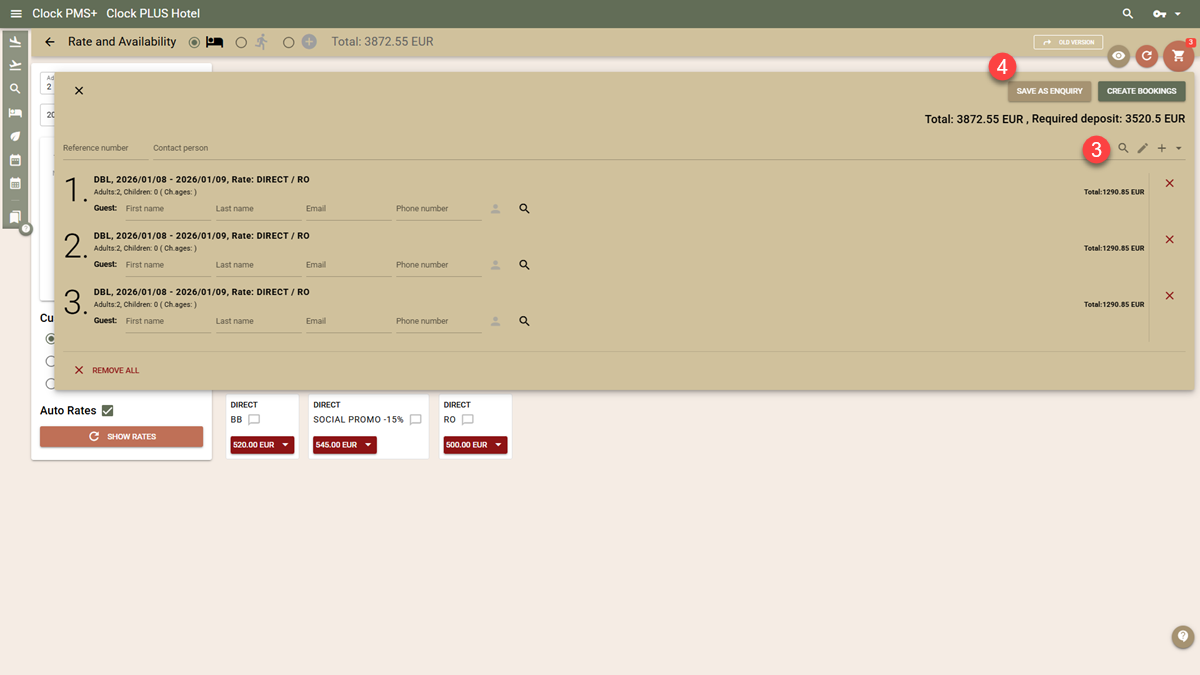
- By clicking the 'X' on the right, you can remove already added rooms.
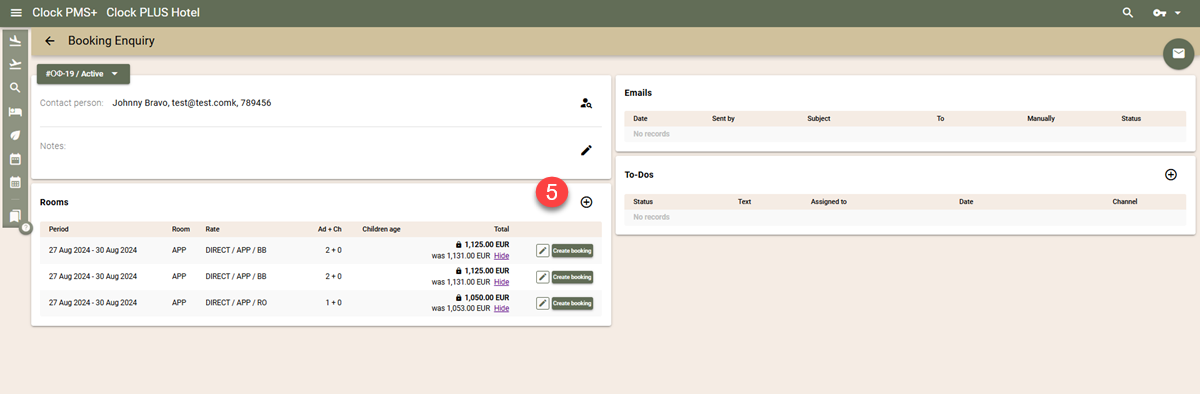
- Once you click on Save as Enquiry, you will be taken to the Enquiry page.
- You can also add rooms for different periods, room types and number of guests by clicking in the + button (5)
Use floating or fixed prices
Floating prices
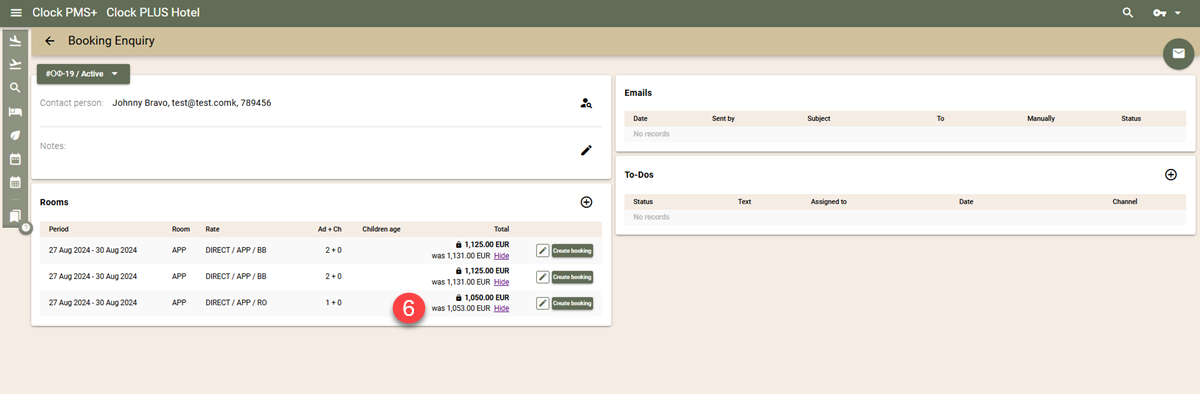
A Booking Enquiry shows the prices of the rooms at the time they were added (offered). These are not fixed prices but informative ones that show what you have offered the guest. When bookings are created, they are with prices at the moment of creation. So you will need to check if the current prices have changed compared to the ones you sent. Here is how:
- Open the booking enquiry
- The system checks the current prices and if it finds a difference in the rate price, the rows containing changes shows the current price while the old one is shown underneath (6);
Fixed prices
Alternatively to floating prices, you can choose to use fixed prices. This guarantees that the guest's booking will be created at the prices offered in the enquiry reply no matter how the current prices have changed. Here is how:
- When adding rooms to the enquiry through the Rate and Availability screen, select the 'Use Manual price' button.
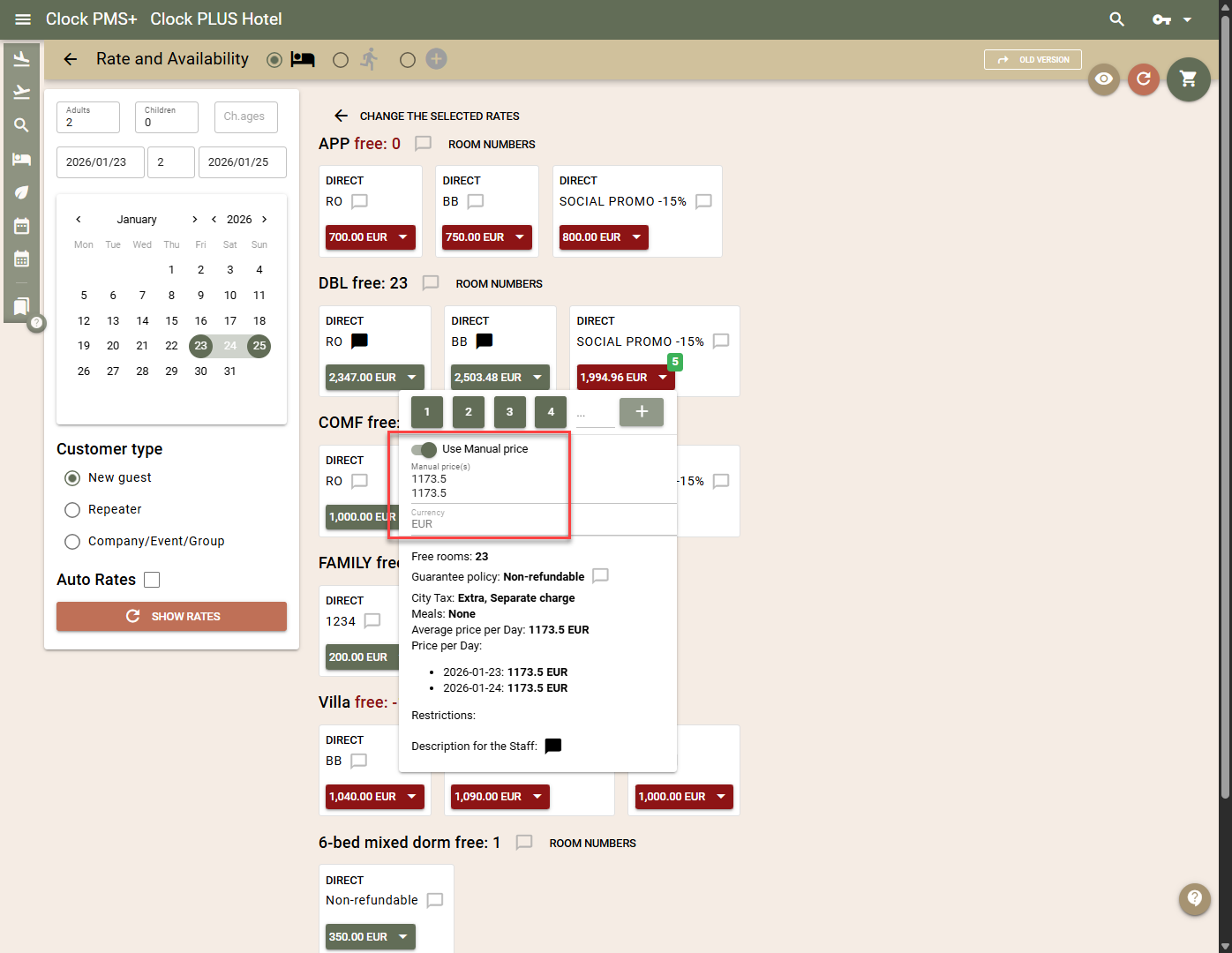
- the 'Manual Price' field will be filled out with the price from the rate and will remain fixed
Thus entered, the price will be transferred to the 'Manual Price' field of the booking and the guest will be able to book at the offered price.
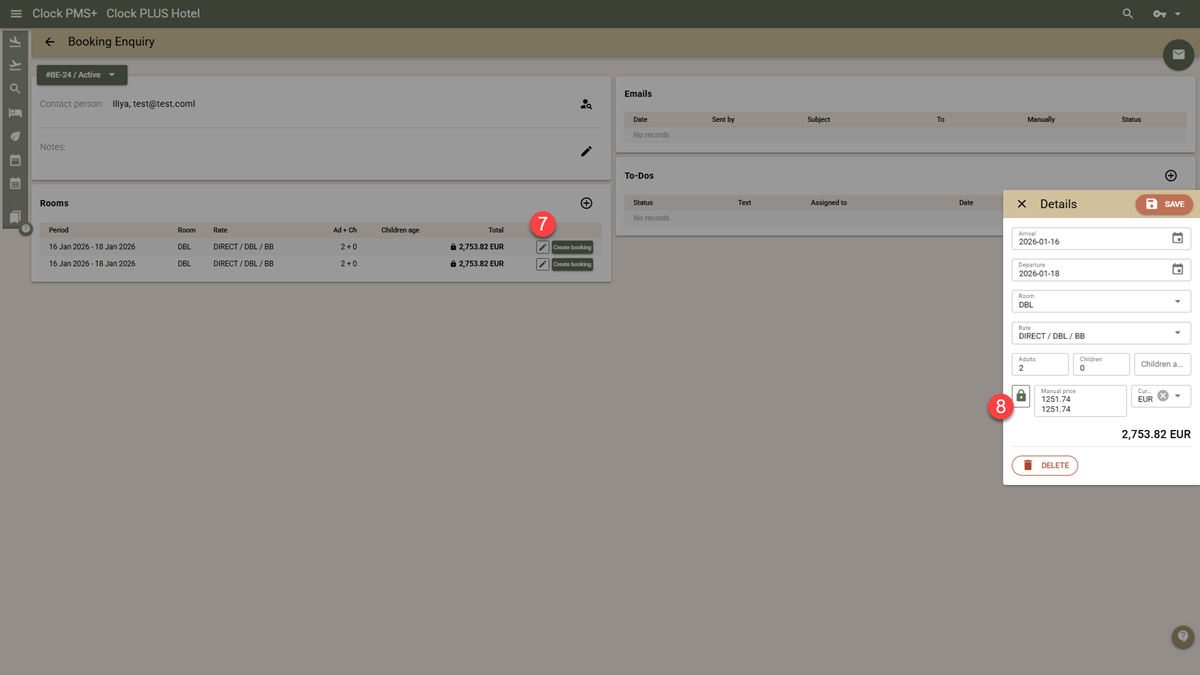
- If you didn't fix a price originally, you can do so by clikcing the Edit (7) button and then the Lock (8) icon.
Email or print the enquiry reply
To send a booking enquiry reply, you can use our customisable standard form or build an entirely new custom form with your own design and arrangement (see Custom Booking Enquiry Template for more information).

Here is how you can print or email the reply:
- Find the enquiry through the navigation menu Booking ->Booking Enquiry Search and open it;
- Check all the details before clicking the 'Mail' button.
- When ready with the whole content, send the email.
An archive of all sent emails is maintained. It can be viewed in the Email section of any Booking Enquiry.
Create a booking based on the booking enquiry
After receiving an email or telephone call from a guest with a request for a booking based on the enquiry, here are the steps to create the booking:
- Find the guest's enquiry (Bookings->Booking Enquiry Search)
- Open it;
- Click 'Create Booking' (9) button next to the respective room;
- Confirm the guest profile or select/enter a new one and save;
- Click the link of the newly created booking to edit it or send a confirmation.
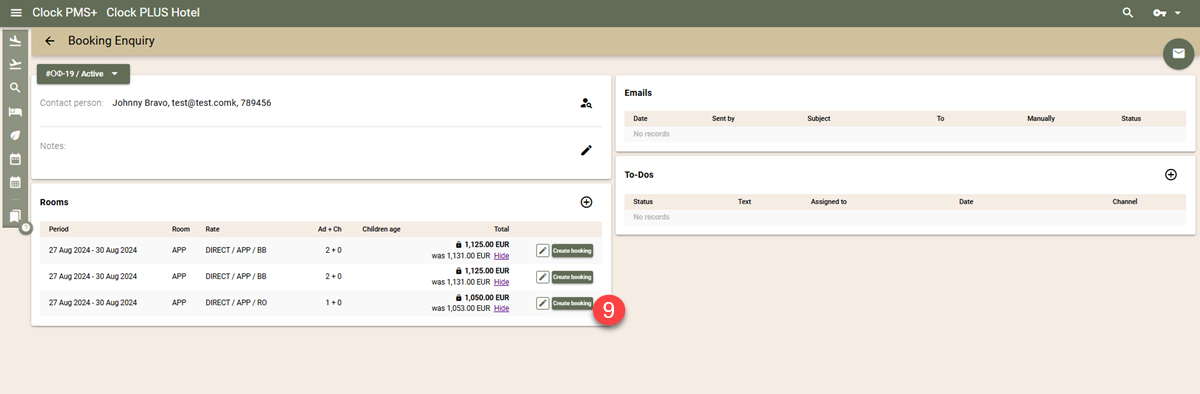
There a booking will easily be created on the basis of the data from the enquiry reply in a click. Apart from saving time, a client can also take advantage of special prices and packages, if offered.
Booking Enquiry Status and Waiting List
Statuses
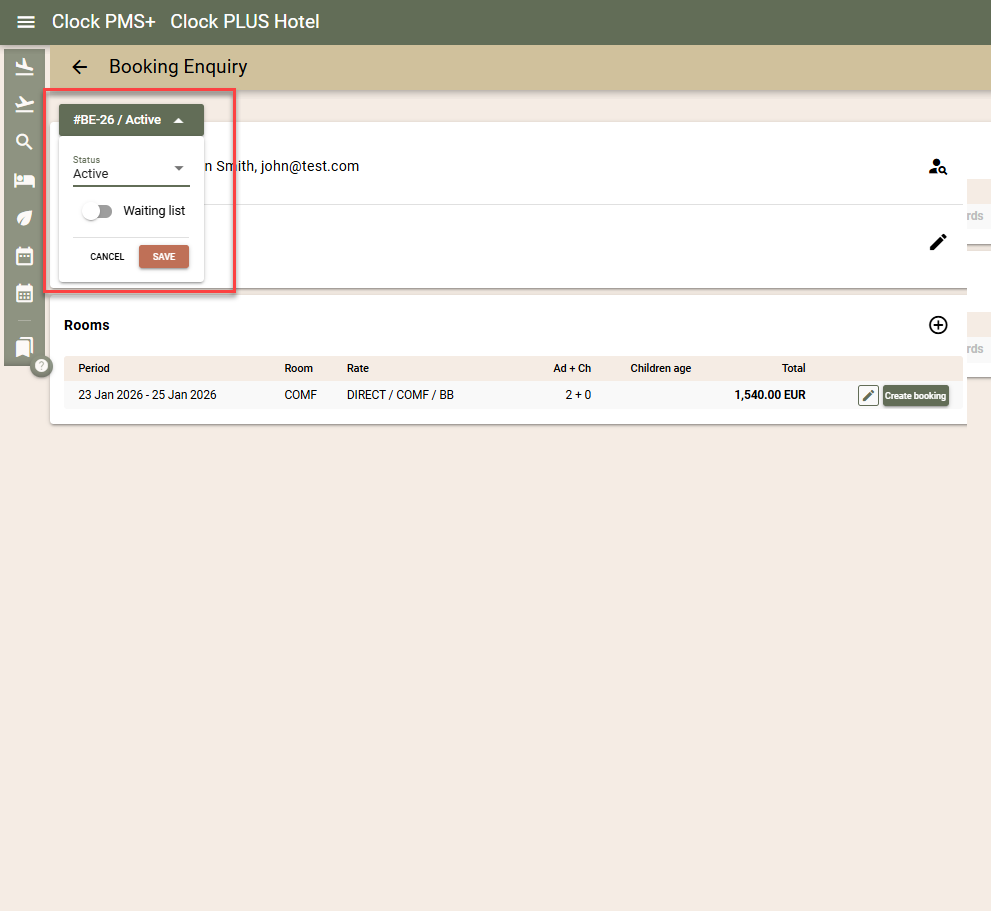
By default, all new enquiries receive the 'Active' status upon creation. The status shows if the enquiry is still valid. If bookings are created in relation to an enquiry, its status is automatically changed to 'Closed'. Use the 'Cancelled' status for the dropped enquiries. You can manually change the status of an existing enquiry by:
- From the navigation menu, open Booking–>Booking Enquiry Search. Use the filters to find the enquiry. Select the 'Open' button in its row, then click the click the enquiry number on the top left.
Waiting List
If for the period of the enquiry, you have no availability, but still you want to save it to keep it in case of changes to the availability, you can add it to the waiting list. To this end, when creating the enquiry, tick the checkbox of the “Waiting List” field or mark it at a later stage following the status change steps.
When rooms become available for a certain period, simply check the enquiry waiting list:
- Go to Booking–>Booking Enquiry Search;
- Use the period filter to check the enquiries for a certain period only;
- For the value of the “Waiting List” filter, select “Yes” and load the list.
Upon finding the Waiting list enquiries, follow the steps described above to check the up-to-date prices. Prepare the offer and send it to the customer via email.