
The rules for automatically routing charges (routers) allow you to configure the logic for distributing charges even before bookings are created. Through them, you can determine which charges are directed to whom and in which folios they are reflected, without the need for manual transfers.
In this article, you will learn how to create and configure routers for automatic charge routing.
Setup
To configure routers, from the navigation menu, select Settings → All Settings → Booking Charge Routing.
To add a new router:
- Select the "+" button in the upper right corner;
- In the "Name" field, enter a clear and descriptive name that suggests the purpose of the router;
- Select "Add instruction" to add a rule for routing charges.
Each router can contain one or more instructions.

Configuring instructions
Each instruction determines which charges it applies to and to which folio they will be routed.
For which charges it applies
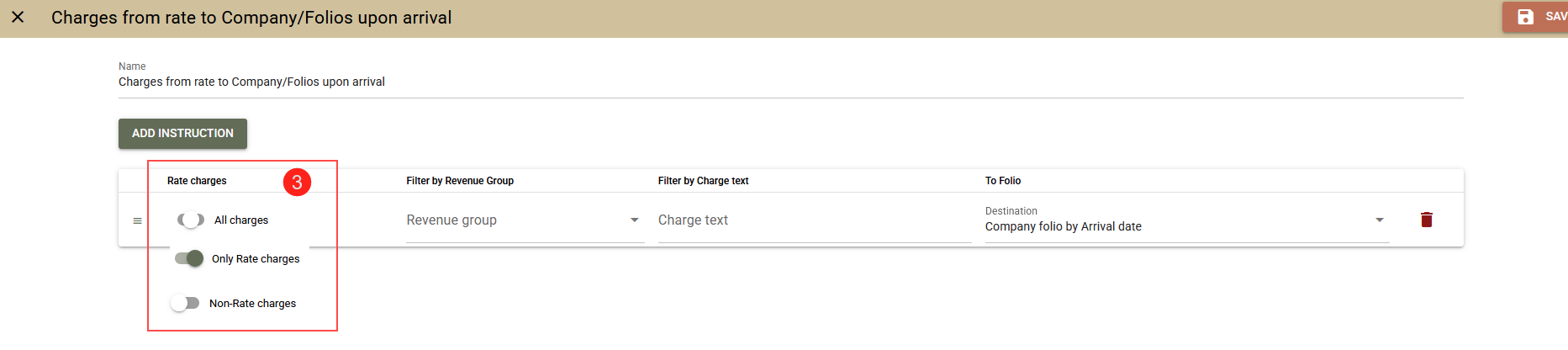
- Rate charges - determines the origin of the charges. Possible values are:
- All charges – regardless of origin;
- Only Rate charges - automatic charges from the rate (overnight stays, package services, City Tax));
- Non-Rate charges - manual charges, POS transfers, or daily charges per booking.
- Filters:
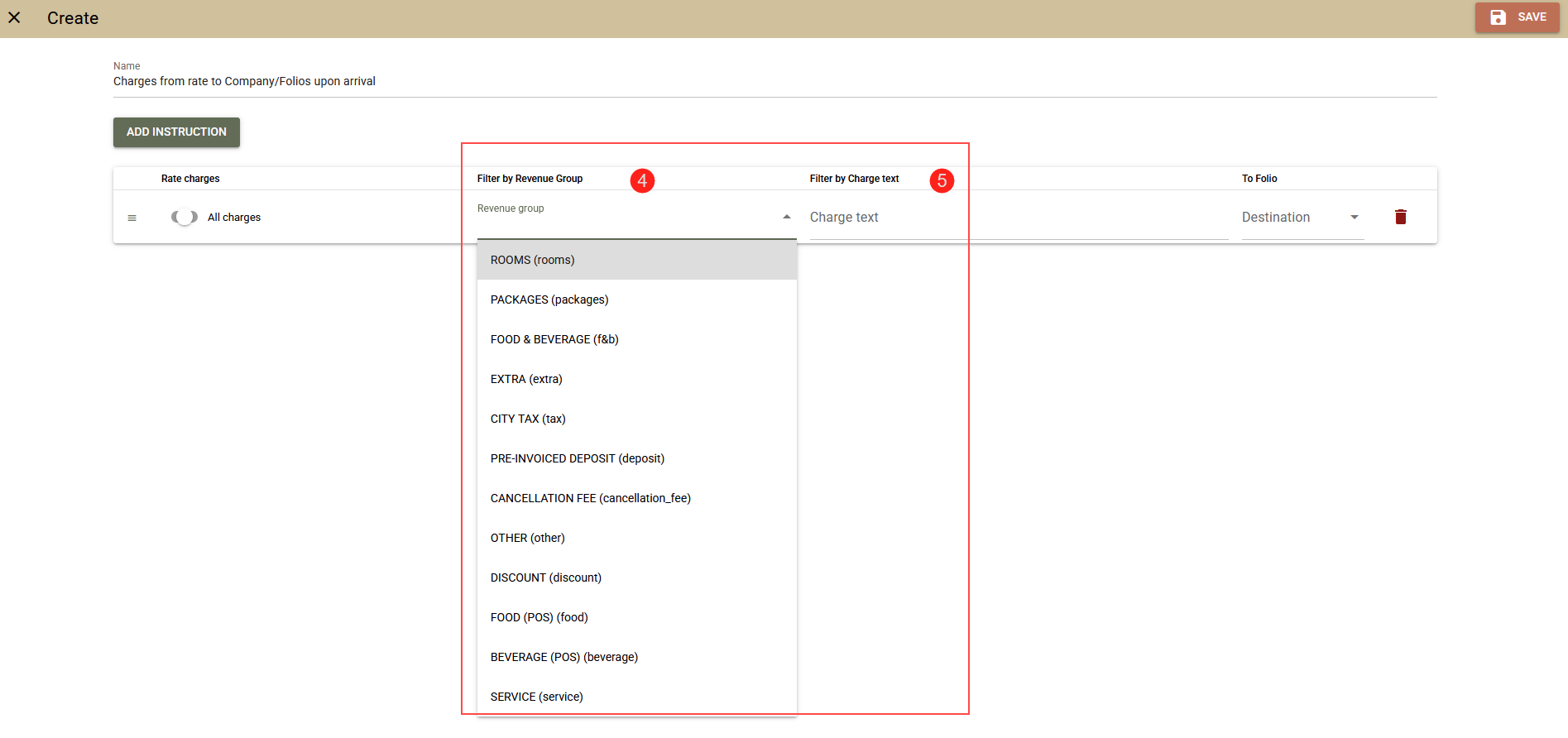
- Filter by Revenue Group - limits the rule to a specific revenue group (optional) or leave the field blank (the rule applies to all charges);
- Filter by Charge text - allows routing of a specific service;
Destination
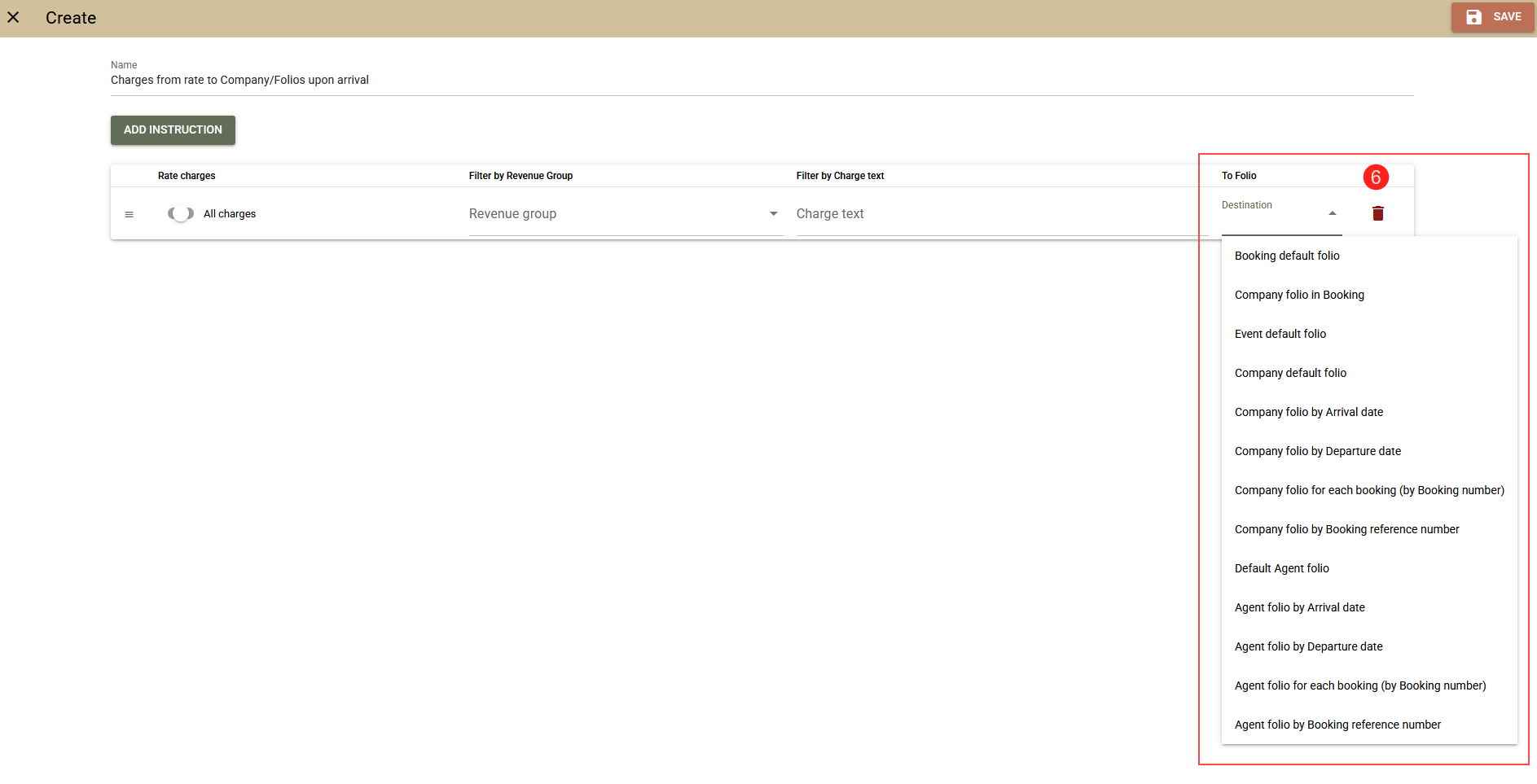
The destination determines in which folio the charges will be routed.
- Booking default folio - the charges remain in the booking. It is most often used for exceptions, as charges remain in the booking by default.
- Second Booking Folio - the charges remain in the booking. The system searches the booking for an open folio with the name "2" , if there is none such one is created and the charges are routed there.
- Company folio in Booking - a folio with the Company as the recipient will be created in the booking (if one does not exist), and the charges will be routed there.
- Event default folio - the default folio of the meeting.
- Company default folio - the Company's default folio.
- Company folio by Arrival date - for each separate arrival date, a new folio will be created in the Company, the name of which will be the arrival date, and the charges will be routed there.
- Company folio by Departure date - for each separate departure date, a new folio will be created in the Company, the name of which will be the departure date, and the charges will be routed there.
- Company folio by Arrival month - for each month in which a booking arrives, a separate folio is automatically created in the Company. The name of the folio corresponds to the month and year of arrival, and all charges for bookings arriving in that month are directed to it.
- Company folio by Departure month - for each month in which a booking is checked out, a separate folio is automatically created in the Company. The name of the folio corresponds to the month and year of departure, and all charges for bookings with departures in that month are routed to it.
- Company folio for each booking (by Booking number) - a separate folio will be created in the Company for each booking number, with the booking number corresponding to the folio name.
- Company folio by Booking reference number - a separate folio will be created in the Company for each reference number, with the folio name corresponding to the reference number.
- Agent folios - in analogy to the corresponding rules for Company folio.
Order of rules
The order of the instructions in the router is critical when several rules can be applied to the same charges.
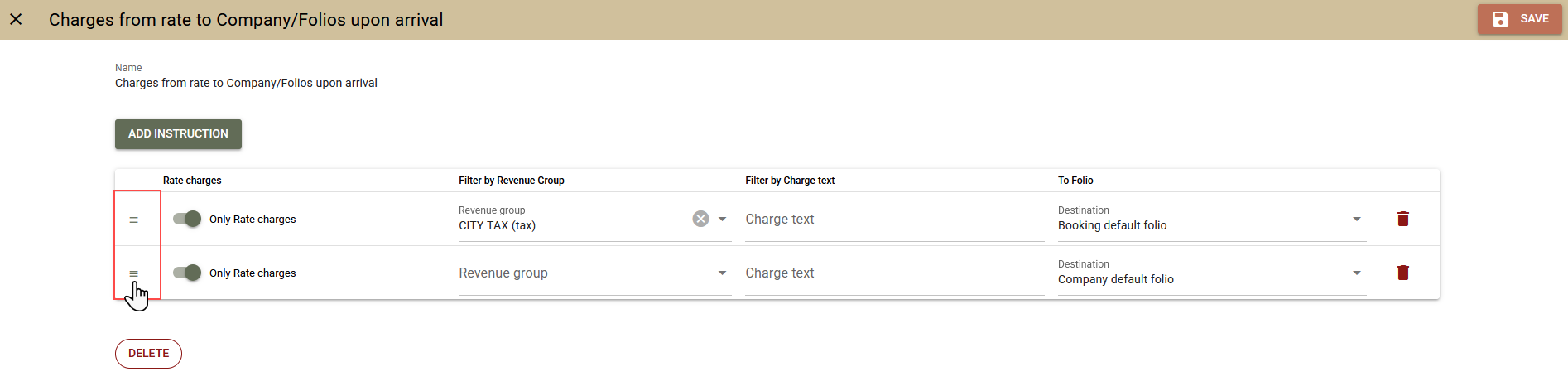
The basic rule is that more specific rules and exceptions should be placed at the top to be applied with priority. The ordering is done by dragging the icon to the left of each rule.
Example:
Goal: All charges from the rate (package) should be routed to the meeting folio, with the exception of City Tax, which should remain payable by the guest.
- Rule for all rate charges: Rate charges only → Meeting default folio;
- Rule for City Tax: Rate charges only → Revenue group "City Tax" → Booking default folio;
For the configuration to work correctly, the City Tax instruction must be placed at the top. This way, the tax will remain in the booking folio, and all other charges from the package will be routed to the meeting folio.
See also