
With this article we will familiarise ourselves with the Company profile page and what the various information and functions entail.
To open an existing Company, navigate to menu Companies->Search Company (new)-> type in the Name, VAT number, or contact information (1) and the system will display the companies that match your search on the screen. To open the profile for viewing, use the "Open" button in the row of the desired company.
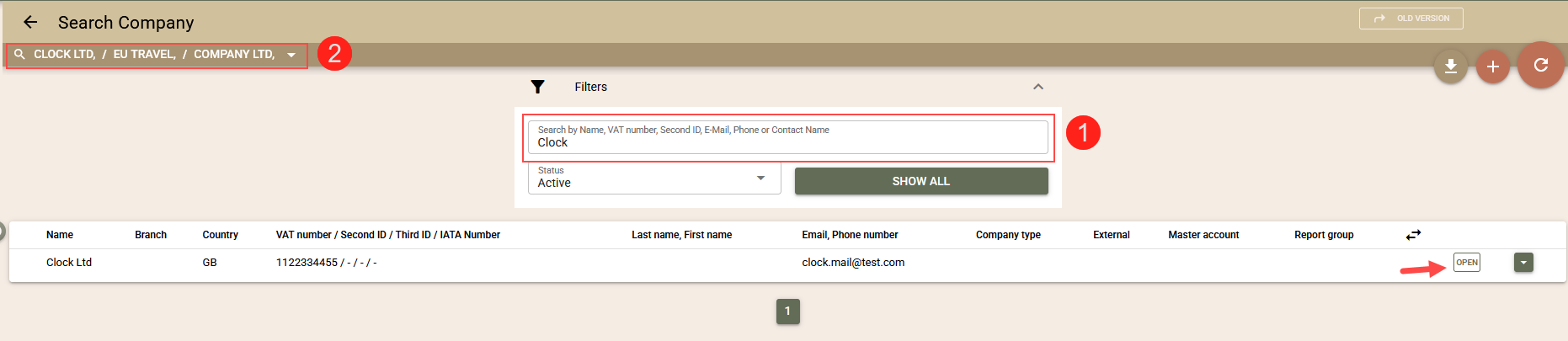
Quick access to recently opened Companies (2) - In the bar above the filters, you will see the names of the companies last opened on this device. Select a company to open it. You can open the full list of the last 20 companies used by clicking on the triangle icon at the end of the row.
Company Folios, Bookings, Events and Rates
In Clock PMS+, it is very easy to keep track and operate with all folios and bookings, events and rates linked to a company. Just open a company screen, and you will have access to all of them.
The Folios
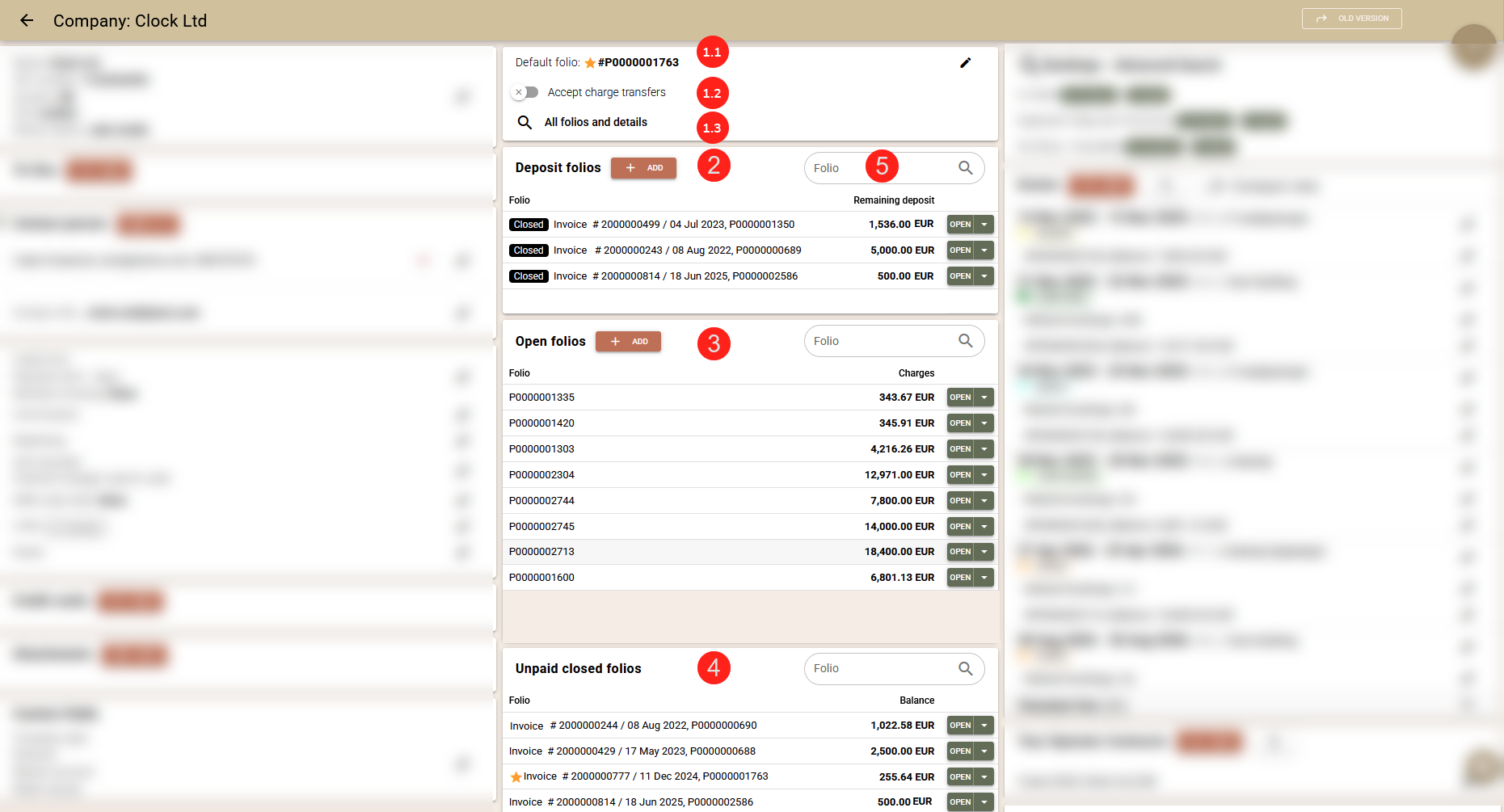
In the central part of the screen, you will find several groups of folio. Through the company profile, you can manage the following:
- Default folio (1.1) - here you can see or select which folio to be considered the 'Default' one for this profile. This is in relation to the automatic transfer of charges from bookings. If a default folio is not selected, charges will be transferred to the 'oldest' open folio, which can change over time and make operations more complex and prone to mistakes. When a default folio is selected, charges will be transferred to this folio only, which makes it easier to locate. From this folio, charges can then be transferred to another folio in the company.
- Checkbox "Accept charge transfer" (1.2) - If this setting is enabled, it allows transfers of accruals to this company's folio. If left unchecked, transfers of accruals to this company will not be allowed.
- Deposit (2) - you can create a deposit folio or to see other deposit slips for this company containing unused amounts.
- Open Folios (3) - you can create a new open folio or see all current open folios in this company profile.
- Unpaid Closed Folios (4) - you will see any unpaid closed (invoiced) folios. The same can also be located in the Accounts Receivable report.
Each group has a search engine (5) that allows you to find a folio by its Number, Name, Document Number, Document Date, or Document Type (if one has been issued).
Important: Please note that you will see only folios created in the Company profile - folios in bookings that only have the Company profile attached to them will not be visible in these sections.
- All Folios and details (1.3) - link to the "Advanced Folio Search" screen, also accessible via the "..." button in the upper right corner. You have several predefined filters (e.g., unpaid folios, folios for accommodated or expected reservations, etc.) that speed up the process of finding the company's folios. In addition, the search screen provides a number of filtering and processing options, including a function for mass transfer of accruals between folios and Multi-Folio View.
Other sections
The other sections in the Company profile provide even more information:
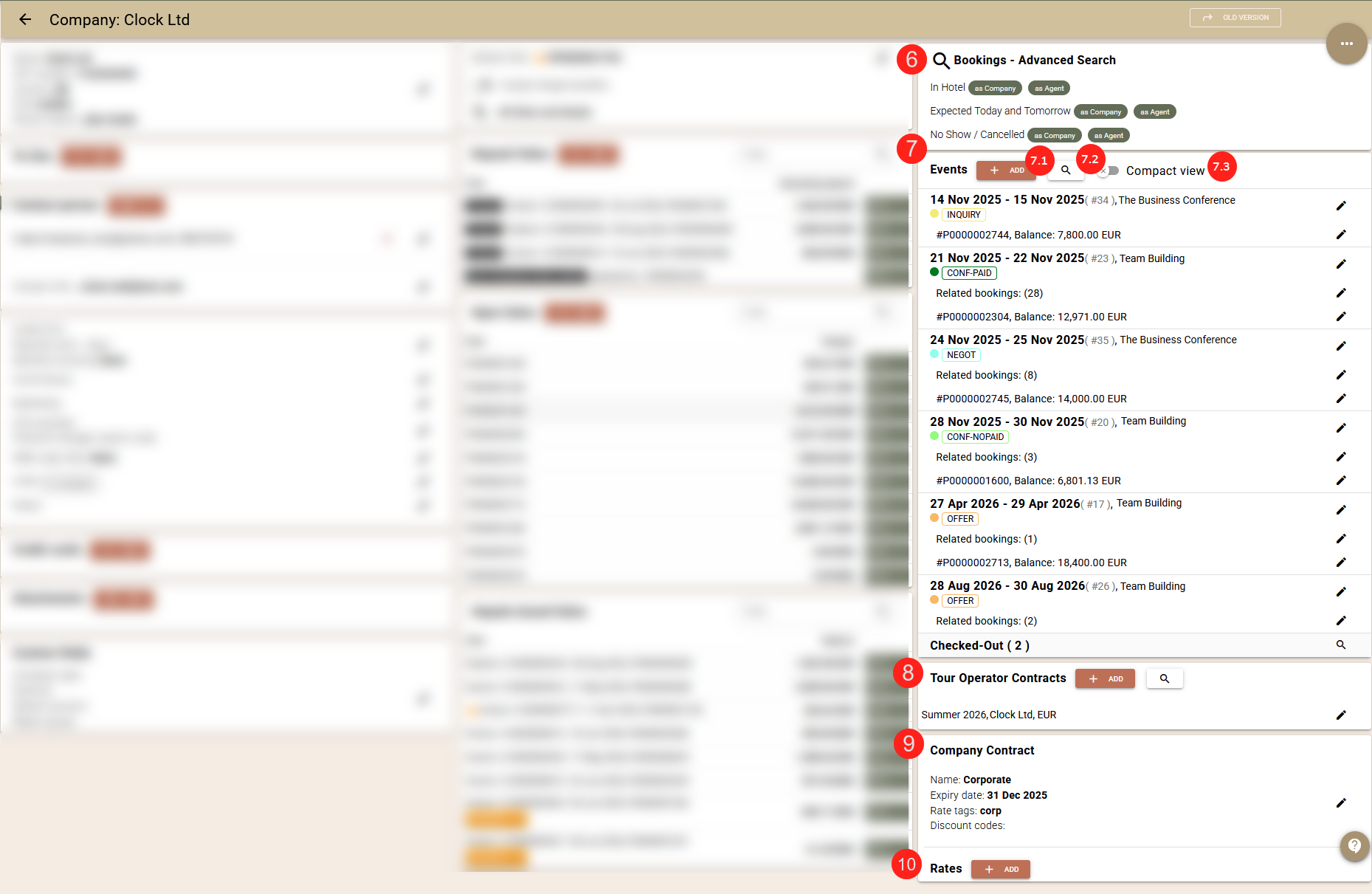
- Bookings - Advanced Search (6) -in this section you can click on the 'As Company' or 'As Agent' links next to:
- 'In Hotel' to see all guests in the hotel having bookings linked to the company/agent
- 'Bookings – Expected Today and Tomorrow' to see all bookings expected today and tomorrow related to the company/agent
- 'No Show / Cancelled' to see all bookings linked to the company/agent, which are no show or cancelled
- Events (7) - in this section you can see company-related events, listed as links to quickly access them. The focus is on current and upcoming events, and you can find the rest via the link to the event search (7.2). Next to each event, Clock shows the period of the event and the number of bookings related to this event, which is also a link to an advanced search screen displaying these bookings in greater detail. Furthermore, you can create a new event related to this company as well (by pressing the '+Add' (7.1) button). The Events list also has a more compact view (7.3), which you can enable with the button at the top.
- Tour operator contracts (8) - create and manage tour operator contracts with this company. More information on creating and managing tour operator contracts is available HERE.
- Company Contract (9) - select a company contract to be used for this profile or create a new one. More information about company contracts is available HERE.
- Rates (10) - instead of using a company contract, you can select rates to be attached to this profile. More information about individual rates related to a company is available HERE.
Archiving or restoring a Company
If a certain Company will not be used temporarily or permanently, you can archive it, by clicking the ...->Archive button in the Company profile. If the Company needs to be restored later, you need to click on the ...->Restore button in the Company profile.
To find an archived Company, select 'Archived' on the 'Search - Company' screen.

The archived Companies will appear with a '!' sign next to them.