
This guide explains how to configure your Booking.com connection in Clock, covering the activation process, settings management, room/rate mapping, and supplement handling. Please follow the steps carefully to ensure correct setup and synchronization. Make sure you also read through the Specifics of the connection and that you have activated Booking.com in the AppConnector.
Connection Setup
New Connection
If your Booking.com account is not currently connected to any connectivity partner, please follow the instructions in the dedicated activation article HERE.
Switching from Another Provider
If you are already connected to another partner, use Booking.com’s “Switch Provider” feature. This ensures the current connection remains active until setup in Clock is finalised. Once the configuration is complete, our team will activate the new connection, which automatically disconnects the previous partner.
Important: Activation is scheduled in advance. These instructions are based on Booking.com’s documentation. If discrepancies arise, please contact your Booking.com account manager.
Settings in Clock
Navigate to menu Settings -> All Settings -> Online distribution -> Booking.com
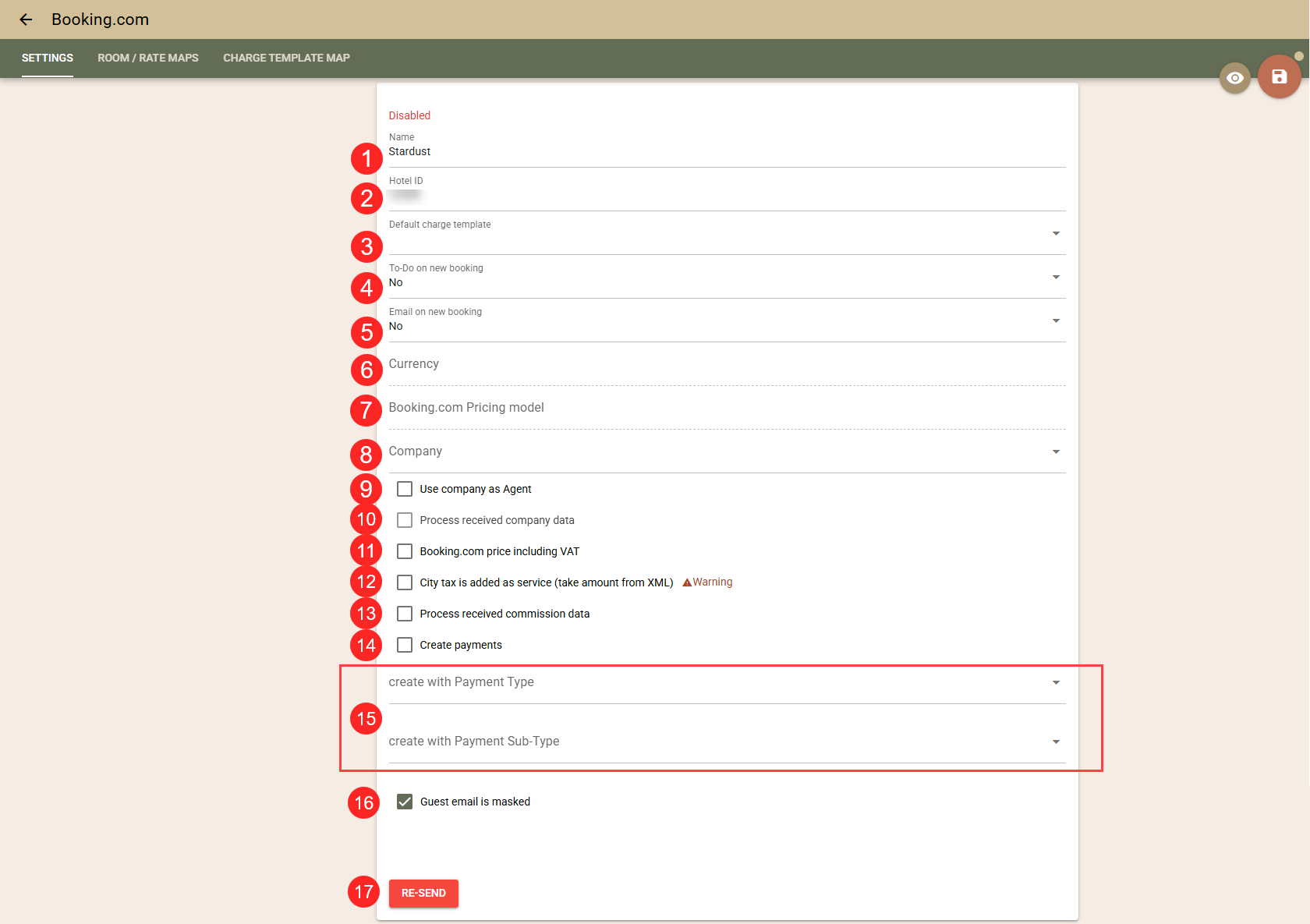
- Name (1) - Customizable. Rename only if managing multiple Booking.com accounts for easier identification.
- Hotel ID (2) - Auto-filled during connection setup. Cannot be edited.
- Default Charge Template (3) - Used when an imported supplement has no mapped template. (See “Charge Template Map” section.)
- To-Do on New Booking (4) - Recommended: Yes. Automatically creates a task when a booking is received.
- Email on New Booking (5) - automatically sends an email notification for each new booking.
- Property Currency (6) & Pricing Model (7) - Auto-filled at activation. Not editable.
- Company (8) - Select a company profile. All imported bookings will be associated with it.
- Use company as Agent (9) - If enabled, the selected company will be set as Agent, not Company.
- Process received company data (10) - Available only if (8) is active. If enabled, Clock will attempt to match booking-provided company data (based on name/VAT) with existing company profiles.
- Booking Price inc. VAT (11) - Choose how the prices Booking.com sends will be treated - including or excluding VAT. Consult Booking.com support if unsure.
Tip: If uncertain about the VAT mode, monitor the first few bookings carefully. If pricing is incorrect, the VAT mode can be corrected, while prices in the affected bookings can be adjusted (corrected) through a manual price.
Important: The next setting can affect booking prices. Consider carefully before enabling it.
- City tax is added as service (take amount from XML) (12) - Enable if you want to import Booking.com’s calculated city tax.
- all bookings from Booking.com will be created with the No city tax option selected. This will deactivate all City tax calculations, which can be otherwise applied based on the City tax settings in your Clock account
- the provided city tax value will be added as a separate charge in the booking folio.
- a single city tax charge is usually added on the arrival date only, even for multi-night bookings.
After enabling this option, you need to complete the setup by configuring the Charge Template Mapping that will be used to apply the City Tax. For more details, see Specifics for City Tax Mapping.
Note: If this option is enabled but the booking message does not contain city tax details, the default city tax configured in Clock (if any) will be applied.
- Process received commission data (13) - enable to import the commission calculated by Booking and sent with each reservation. This information will be added to the Commission section of the booking and tracked in the Commissions report
- Create payments (14) - when importing a new booking, if the guest has prepaid a certain amount, it will automatically be added as a payment to the booking's folio. Use the "create with Payment Type" and "create with Payment Sub-Type" settings (15)to select the type and sub-type of automatically created payments. А If you work with Booking.com on a model where Booking pays you the payments received from guests by bank transfer, this functionality can greatly facilitate your work. Note the following specifics:
- A new setting for payment import has been added, which is disabled by default. Settings for the type and subtype of automatically created payments are also available.
- The import is performed only when the booking is initially created in Clock. Subsequent updates do not import payments to avoid duplication.
- The amount of the imported payment corresponds to the amount the guest paid and which was sent in the message from Booking.com.
- If the guest books several rooms at once, the payment will be added to the first booking in Clock.
- When initially importing existing bookings (if the setting is enabled), the available payments for them will also be imported.
Important: In certain situations, the initial import of bookings is performed with minimal data, in which case payment information may not be available and will therefore not be imported.
Virtual cards. Can the function be used if Booking.com pays the funds via virtual cards?
Yes, it is possible, but we do not recommend it, as the folios will appear as already paid. This can make your job more difficult because:
- automatic payment collection tasks will not be able to be used (as the folios will already be marked as paid);
- tracking the virtual cards that need to be charged will be more difficult.
- Guest email is masked (16) - If this setting is enabled, emails from guests sent via the channel are marked as "masked" (official, sent by the channel). Otherwise, they are treated as "normal" (personal) emails.
- Re-send (17) - Allows scheduling a manual full update of availability, prices, or restrictions. Use only when requested by Clock or Booking.com support.
Room & Rate Mapping
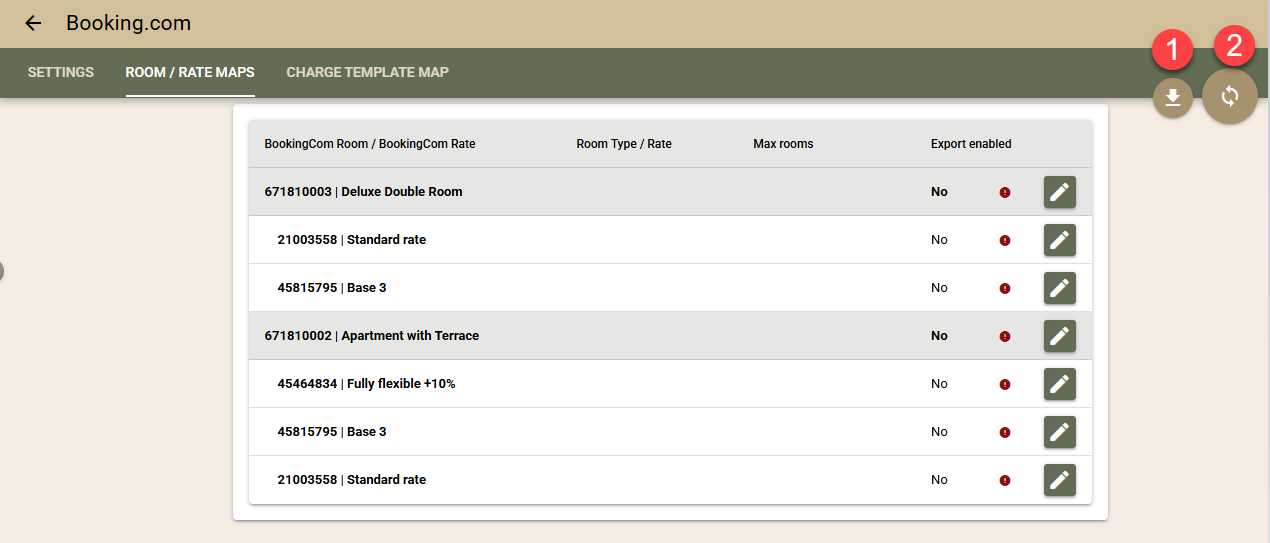
- Download Data (1) - Downloads room/rate data in XML from Booking.com.
- Sync (2) - Syncs Clock settings with Booking.com. Use if changes were made in Booking.com for rooms/rates.
Room Mapping
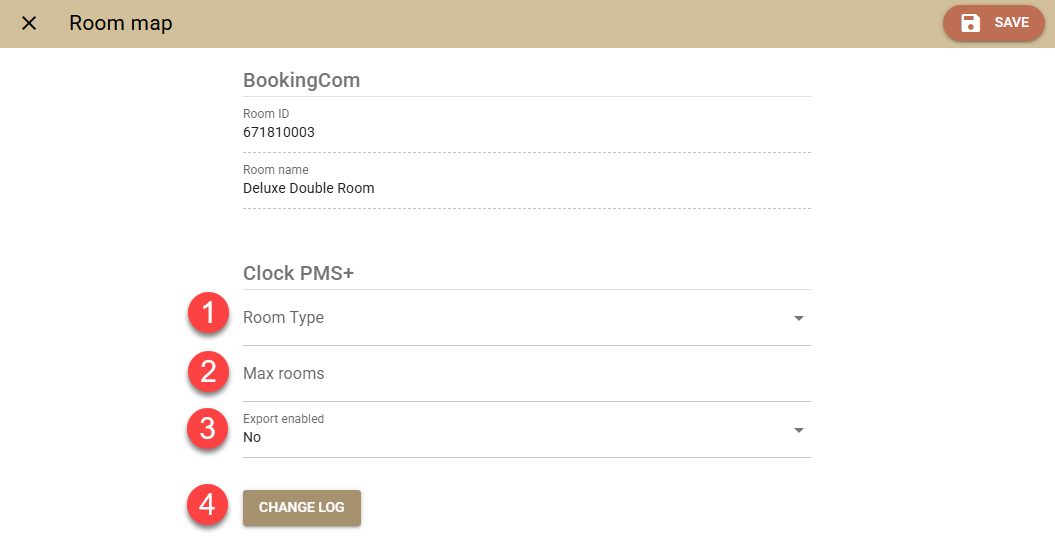
- Booking.com Section - Shows room name/ID from Booking.com (read-only).
- Clock PMS+ Section:
- Room Type (1) - Select the Clock PMS+ room type to export availability.
- Max Rooms (2) -Limits the number of rooms sent
- room type 1 is set with a value of 3
- while you have 5 available rooms -> 3 rooms will be sent
- while you have 2 available rooms -> 2 rooms will be sent
- Export Enabled (3) - Controls whether Clock sends availability updates.
- Change Log (4) - Shows who made changes.
- Click Save after changes.
Rate Mapping
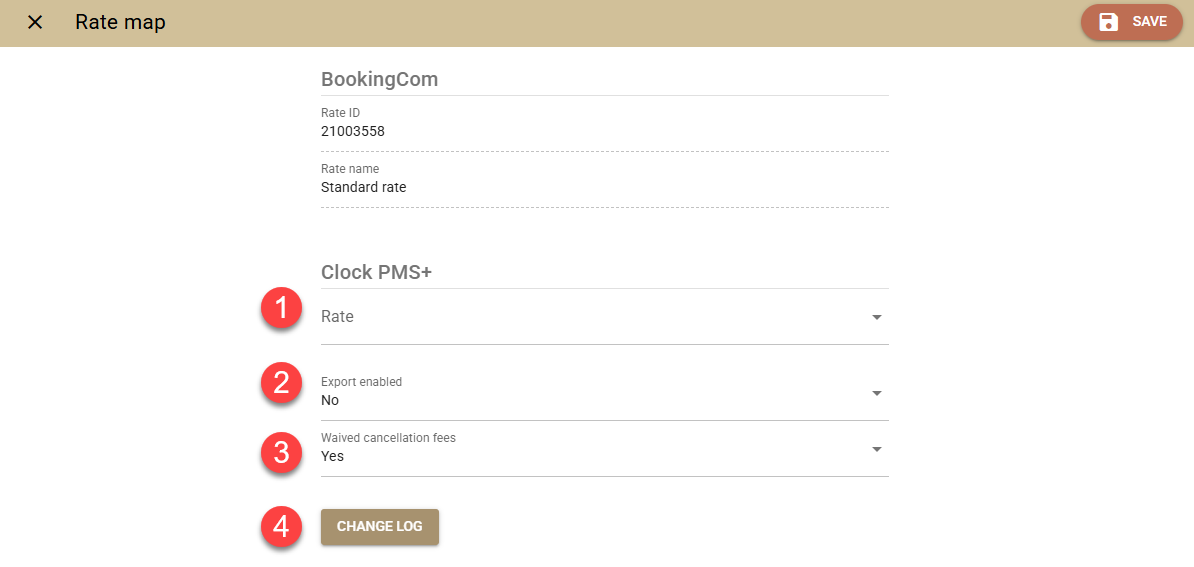
- Booking.com Section - Shows rate name/ID from Booking.com (read-only).
- Clock PMS+ Section:
- Rate (1) - Select the Clock PMS+ rate to export or import prices.
- Export Enabled (2) - Controls whether updates for both prices and restrictions are sent.
- Waived Cancellation Fee (3) - Controls if Booking.com should waive (Yes) or keep (No) the cancellation fees for the booking based on the cancellation settings on their side. Please consult with the No show reporting option for more details as to when a booking will be reported as such. The status of this option is determined at the time the no-show is reported, using the rate assigned to the booking. If the rate from the booking is not present in the mapping settings, the system will default to reporting the booking with a waived cancellation fee.
- Change Log (4) - Shows who made changes.
- Click Save after changes.
Charge Template Mapping
Used to define how supplements and city tax are imported into Clock PMS+.
- Default Import - If no mapping is found, the Default Charge Template (set in Settings) is used.
- Adding a Custom Mapping - Click the "+ (plus)" button and set the following:
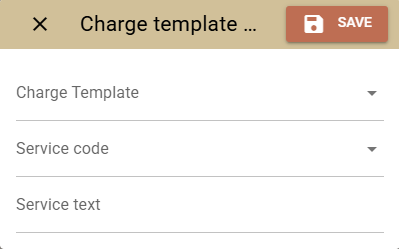
- Charge Template - The Clock PMS+ template to use. The name and the price of the charge will be updated based on the data received from Booking.com.
- Service Code - Must exactly match the supplement’s code in Booking.com.
- Service Text - Optional. For internal clarification.
- Save after adding.
Specifics for City Tax Mapping
If option 11 in the settings (Import City Tax as Service) is enabled:
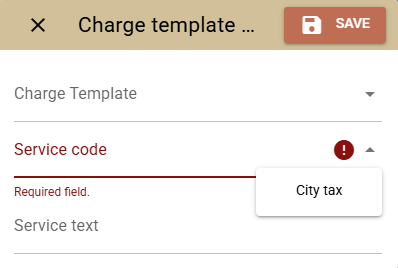
- Click the "+ (plus) button".
- Select the Clock Charge Template for city tax.
- In Service Code, choose City tax from the dropdown.
- Optionally fill in Service Text.
- Save the mapping.
Need Help?
If you're unsure about any settings, especially price models, city tax, or VAT modes — please reach out to Clock support for assistance before proceeding. This helps avoid incorrect prices or disrupted availability.